FAQ
HOW RANKING POINTS WORK
A plain-language guide to how FGC Ranks turns tournament results into player rankings.
Contact Us
Have a support issue or a business inquiry? Reach out at contactus@fgc-ranks.com.
1. How You Earn Points
Your ranking points come from how far you placed in a tournament — 1st, 2nd, top 4, top 8, and so on — not from your individual match win/loss record. Two players can both go 5-1 in the same tournament and still earn very different points if one of them made it further in the bracket than the other.
Every tournament placement has a base point value (see the table below), which then gets scaled up or down depending on how many people entered the tournament — more on that in the next few sections.
2. Which Tournaments Count
Only tournaments that have actually finished — marked Ended — award points. If a tournament is still Upcoming or Live, none of its entrants have earned any points from it yet. Once the organizer marks it Ended, everyone's final placements lock in and their points are counted.
3. Why Tournament Size Matters
The same finish is worth more points the bigger the tournament was. Winning a 128-entrant tournament means beating far more players than winning an 8-entrant one, so it's worth a lot more toward your ranking — even though both are technically "1st place."
Here's the base point value for each placement, before tournament size is factored in:
| Placement | Base Points |
|---|---|
| 1st | 100 |
| 2nd | 60 |
| 3rd – 4th | 35 |
| 5th – 8th | 20 |
| 9th – 16th | 10 |
| 17th or lower (or no recorded placement) | 1 |
And here's what those same placements are actually worth once tournament size scales them up or down, at a few realistic entrant counts:
| Entrants | 1st | 2nd | 3rd–4th | 5th–8th | 9th–16th |
|---|---|---|---|---|---|
| 8 | 0 | 0 | 0 | 0 | — |
| 16 | 3 | 2 | 1 | 1 | 0 |
| 32 | 25 | 15 | 9 | 5 | 3 |
| 64 | 200 | 120 | 70 | 40 | 20 |
| 128 | 283 | 170 | 99 | 57 | 28 |
A few of those numbers, worked out step by step:
1st place, 32-entrant tournament
32 entrants is a mid-sized field, so it falls under the small/mid-tournament curve explained in the next section. At 32 entrants, that curve works out to a size multiplier of 0.25.
1st place's base value is 100 points. 100 × 0.25 = 25 points.
1st place, 128-entrant tournament
128 entrants is a large field, so it uses the standard scaling curve instead, which works out to roughly a 2.83× multiplier at 128 entrants.
100 × 2.83 ≈ 283 points — over 11× what the same 1st-place finish was worth in the 32-entrant example above.
Same placement (3rd–4th), tiny vs. huge event
3rd–4th place has a base value of 35 points. In an 8-entrant tournament, that finish rounds down to 0 points. In a 128-entrant tournament, that exact same finish is worth 99 points.
Here's that same size-scaling multiplier plotted across a full range of tournament sizes:
The steep ramp below 64 entrants is the small-tournament curve; the smoother rise from 64 entrants onward is the standard curve used for large fields. They meet exactly at 64 entrants, both equal to a 2× multiplier — no jump, just a much steeper climb below that point than above it.
4. Why Small Tournaments Score Low
Without some kind of correction, a small tournament win would still be worth a big chunk of a large tournament win, even though it takes a lot less to win it — which would make it easy to inflate your ranking just by running or entering a lot of small, low-stakes brackets instead of playing in genuinely competitive events.
To stop that, tournaments below 64 entrants follow a much steeper curve that grows smoothly as the entrant count climbs — a small local bracket is worth very little, a mid-sized regional is worth a moderate amount, and the curve keeps ramping up from there (that's the steep early climb in the chart above). At exactly 64 entrants, this small-tournament curve meets the standard large-tournament curve used for everything above it, so there's no sudden jump or cliff at that point — just a much steeper ramp below it than above it.
5. The Rolling 52-Week Window
Results don't count forever. Once a tournament is more than 52 weeks (one year) in the past, it stops contributing to your points. This isn't a fixed yearly reset on a specific calendar date — each result individually ages out exactly 52 weeks after the tournament happened, so your points always reflect roughly the last year of your play, on a rolling basis.
6. The Best-10 Cap
Only your best 10 qualifying results (within that rolling 52-week window) count toward your total points — everything else is simply ignored. This means:
- One bad tournament, or an early loss at an event you were favored in, can't drag your total down — if it isn't one of your best 10 results, it just doesn't count.
- Playing in more tournaments can only help you, never hurt: extra results either replace a weaker one in your best-10, or get ignored if they're not good enough to crack it.
7. Overall Rank vs. Per-Game Rank
Your main ranking (shown on your profile and the main Players leaderboard) combines your best 10 qualifying results across every game you've competed in.
Alongside that, you also have a separate ranking for each individual game you've played — for example, your Street Fighter 6 ranking and your Tekken 8 ranking are each calculated independently, using only your best 10 qualifying results within that specific game. A strong overall rank built mostly on one game doesn't automatically carry over to how you're ranked in a different game.
For Tournament Organizers
The TO Guide: Running a Tournament
Everything a Tournament Organizer needs, start to finish — creating a tournament, managing it, running matches live, and closing it out. Every screenshot below is from a real walkthrough of the real app.
1. Creating a Tournament
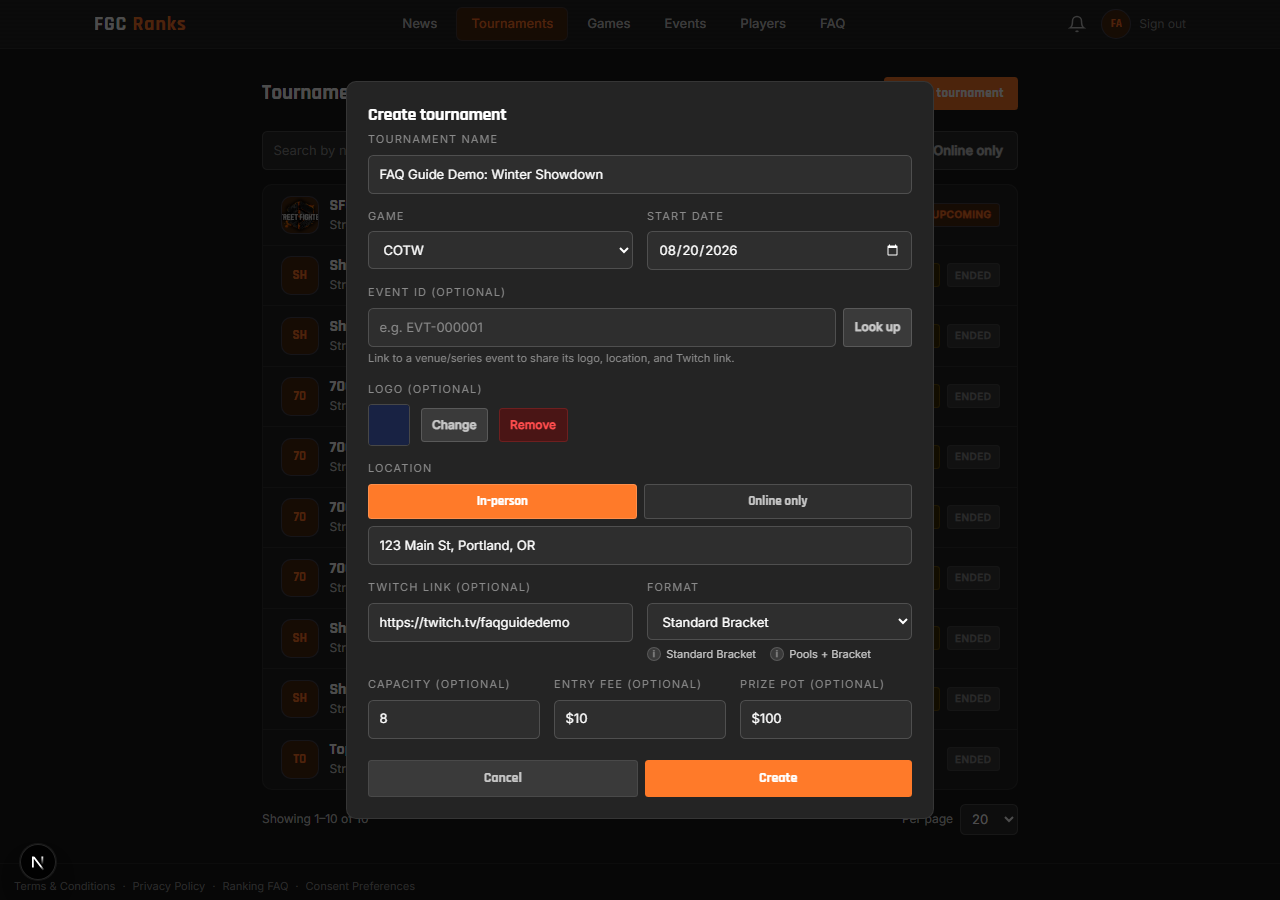
From the Tournaments page, click + New tournament. Name, game, and start date are the only required fields — everything else below is optional.
The one choice that matters most is Format, since it decides how the tournament is actually structured and can't be changed once you've picked it:
- Standard Bracket — every entrant goes straight into one double-elimination bracket. Best for smaller events; a very large field means everyone waits through a lot of rounds before eliminations really thin out.
- Pools + Bracket — entrants are split into smaller pools first, each playing out as its own mini double-elimination bracket; the top 2 from each pool then advance into a main bracket. Gets everyone playing matches faster in a large field, the same way most majors run big brackets.
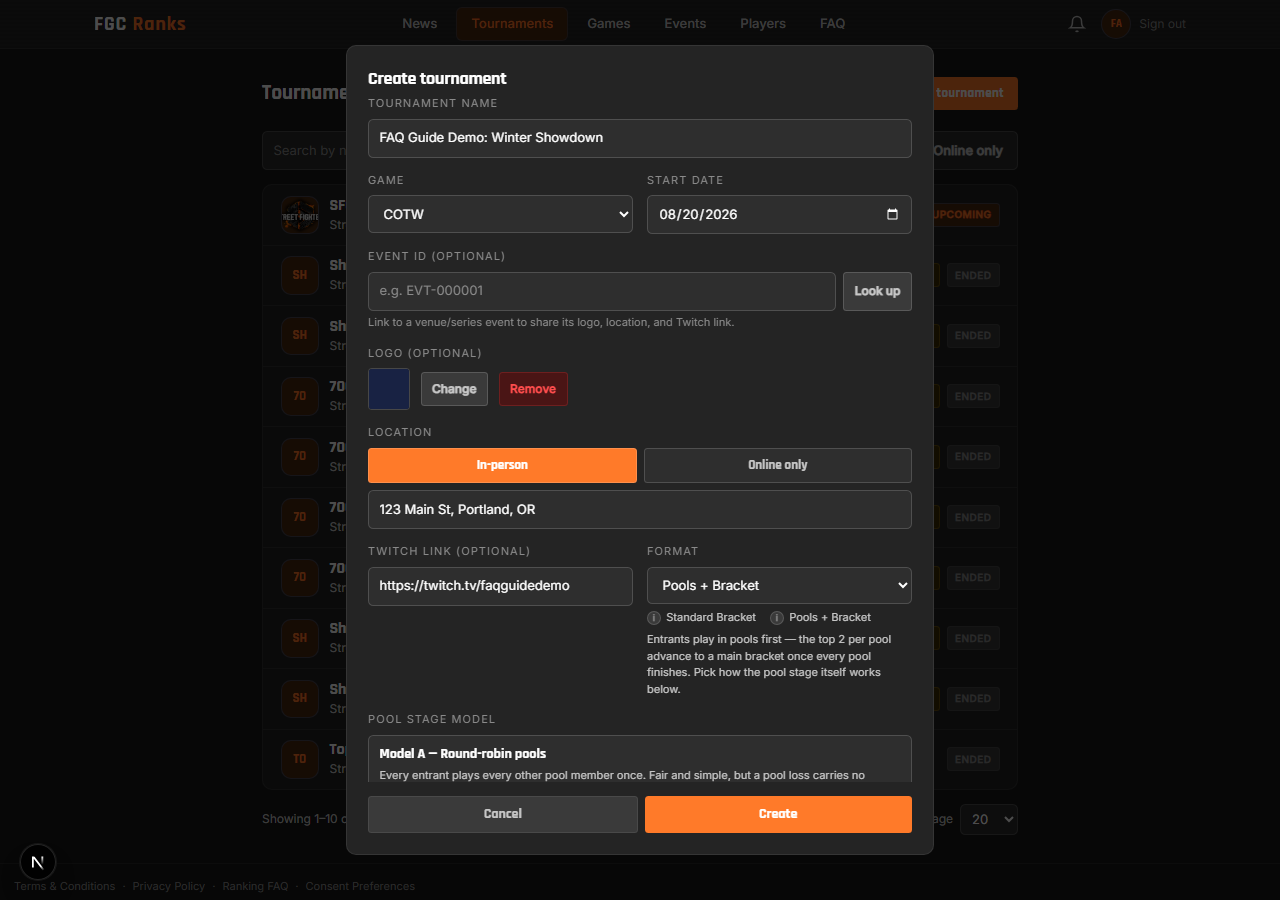
Picking Pools + Bracket reveals a second choice — which pool stage model to use:
- Model A — Round-robin pools: everyone in a pool plays everyone else in it once. Simple and fair, but a pool loss carries no consequence — everyone gets a clean restart at the main bracket. Best for smaller or faster-moving events.
- Model B — Continuous carry-over: Large-Field Pools — massive-scale pools whose results carry over into fresh, re-grouped pools across several rounds instead of resetting once. Needs at least 128 entrants to be worth the extra complexity.
- Model C — Double-elimination pools (default): each pool is its own mini double-elimination bracket, so pools have real stakes — a 2nd loss eliminates you from the pool. Still a clean slate once you reach the main bracket.
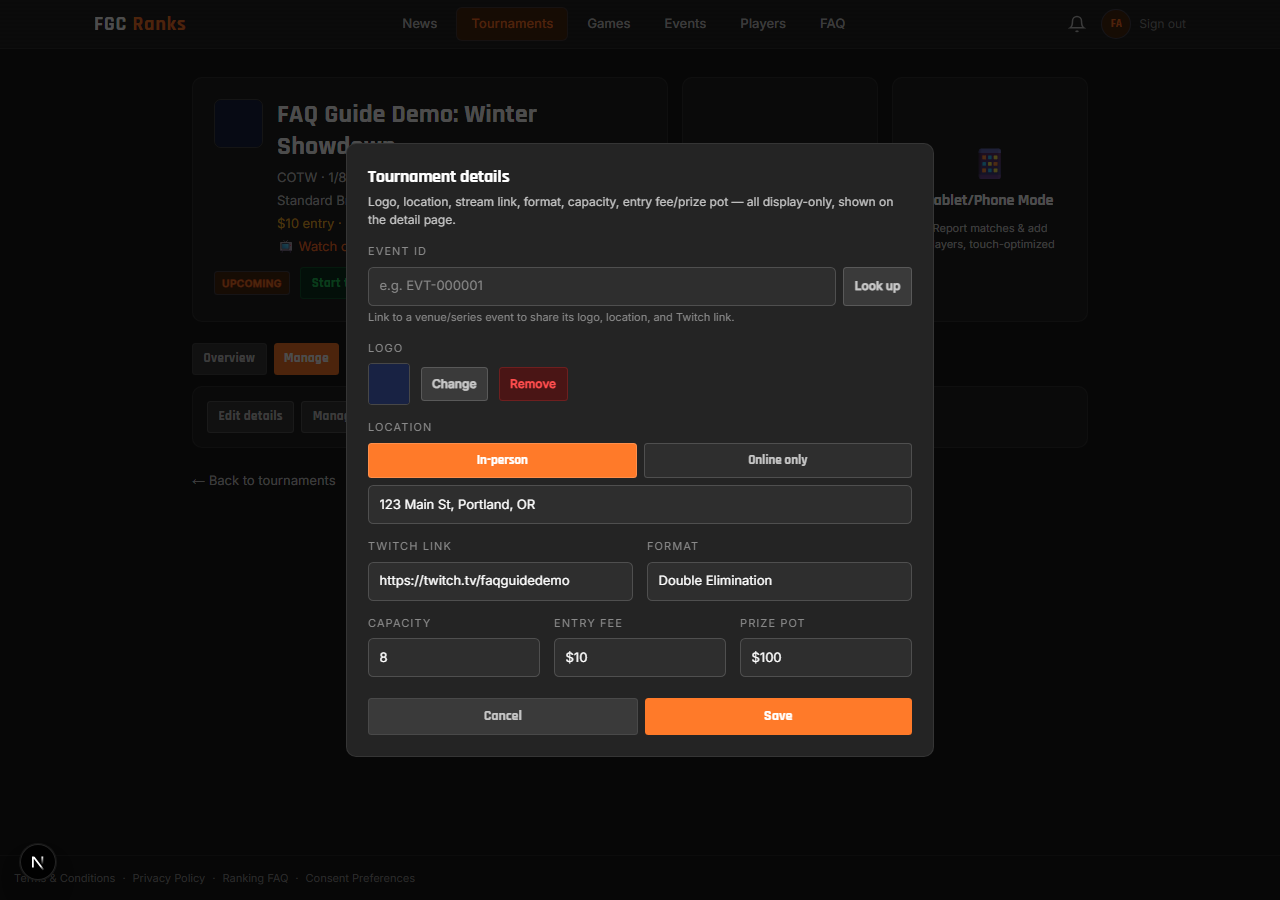
The other fields, all purely informational (none of them affect the bracket itself):
- Logo — an image shown on the tournament page.
- Location — either a physical address, or toggle "Online only."
- Twitch link — shown as a "Watch on Twitch" link.
- Capacity — a number shown on the page (e.g. "24/32 entrants"); it's a display figure only and doesn't actually stop anyone from joining once it's reached.
- Entry fee / Prize pot — free text (e.g. "$10", "$200").
- Event ID — link this tournament to a venue or series Event (e.g. "EVT-000001") so it shares that Event's logo, location, and Twitch link instead of its own.
One subtlety worth knowing: after creation, Edit tournament details (see the Manage Area section below) lets you retype the Format field as free text — e.g. relabeling it "Double Elimination" for display. That only changes the label. It does not convert a Standard Bracket tournament into a Pools + Bracket one, or vice versa — that structural choice is locked in for good at creation.
If your account doesn't have TO status yet, you can still create a tournament — it's just created private (invite-only), without stream background/sponsor banner options, and its matches won't count toward ranking points. Request TO status from your profile to remove those restrictions on future tournaments.
2. Visibility & Invites
Tournaments start out Public — anyone can join, no invite required. From Manage → Visibility/Invites, a TO can flip it to Private instead.
Private doesn't mean hidden — a private tournament still shows up everywhere a public one would (the Tournaments list, its own page, marked with a 🔒), it's "locked": only players who've been sent and accepted an invite from an organizer can actually join.
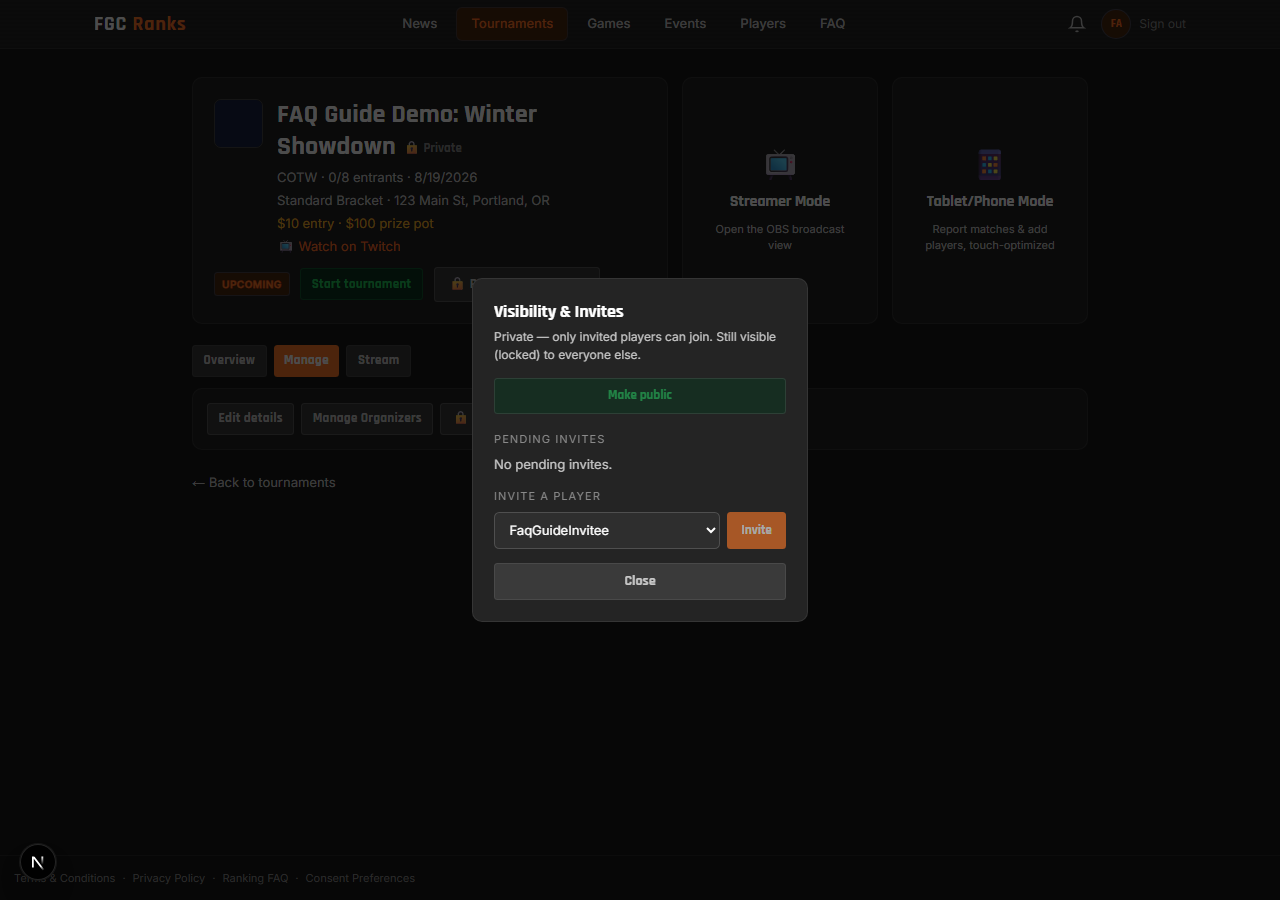
Once private, invite a specific player from the picker; they show up under "Pending invites" until they respond (with a "Cancel invite" option if you change your mind). On their end, the invited player sees Accept/Decline buttons right on the tournament page:
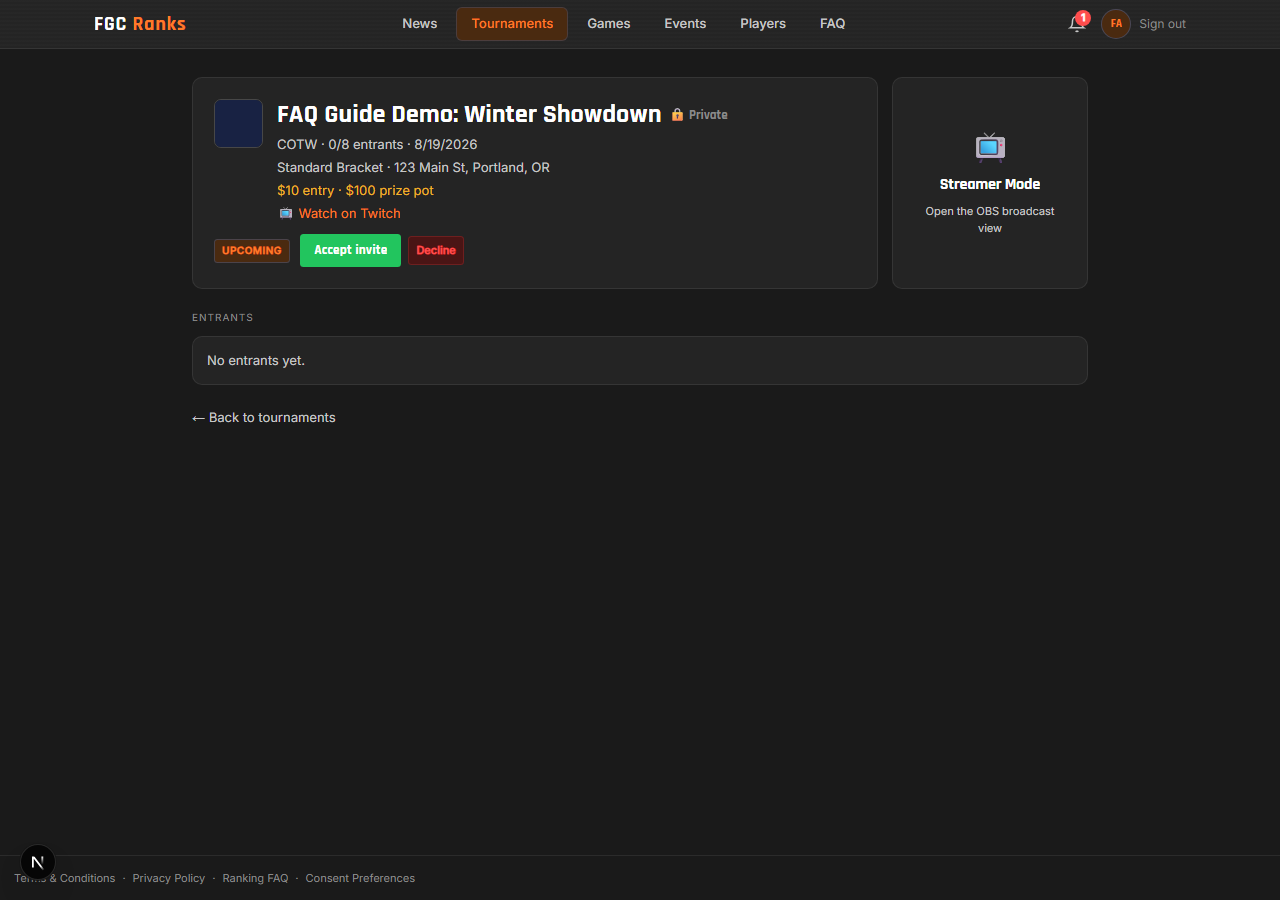
Invites can only be sent (or accepted) while the tournament is still Upcoming — once it goes Live or Ended, the invite picker closes automatically, the same way normal joining does.
3. The Manage Area
Once you're an organizer (or an Admin), a small tab bar appears on the tournament page: Overview / Manage / Stream. The Manage tab holds three buttons — Edit details, Manage Organizers, and Visibility/Invites; the Stream tab holds one — Stream settings.
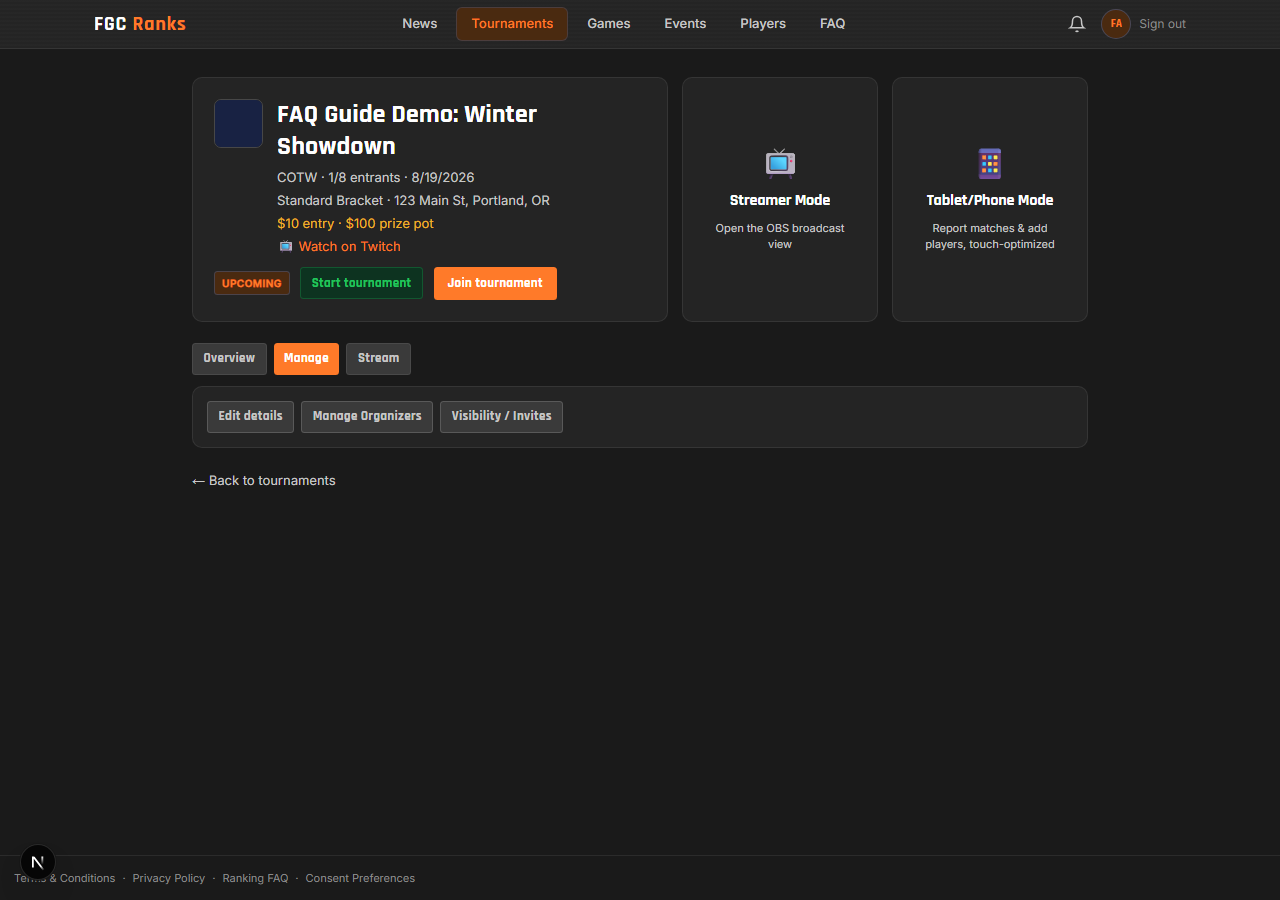
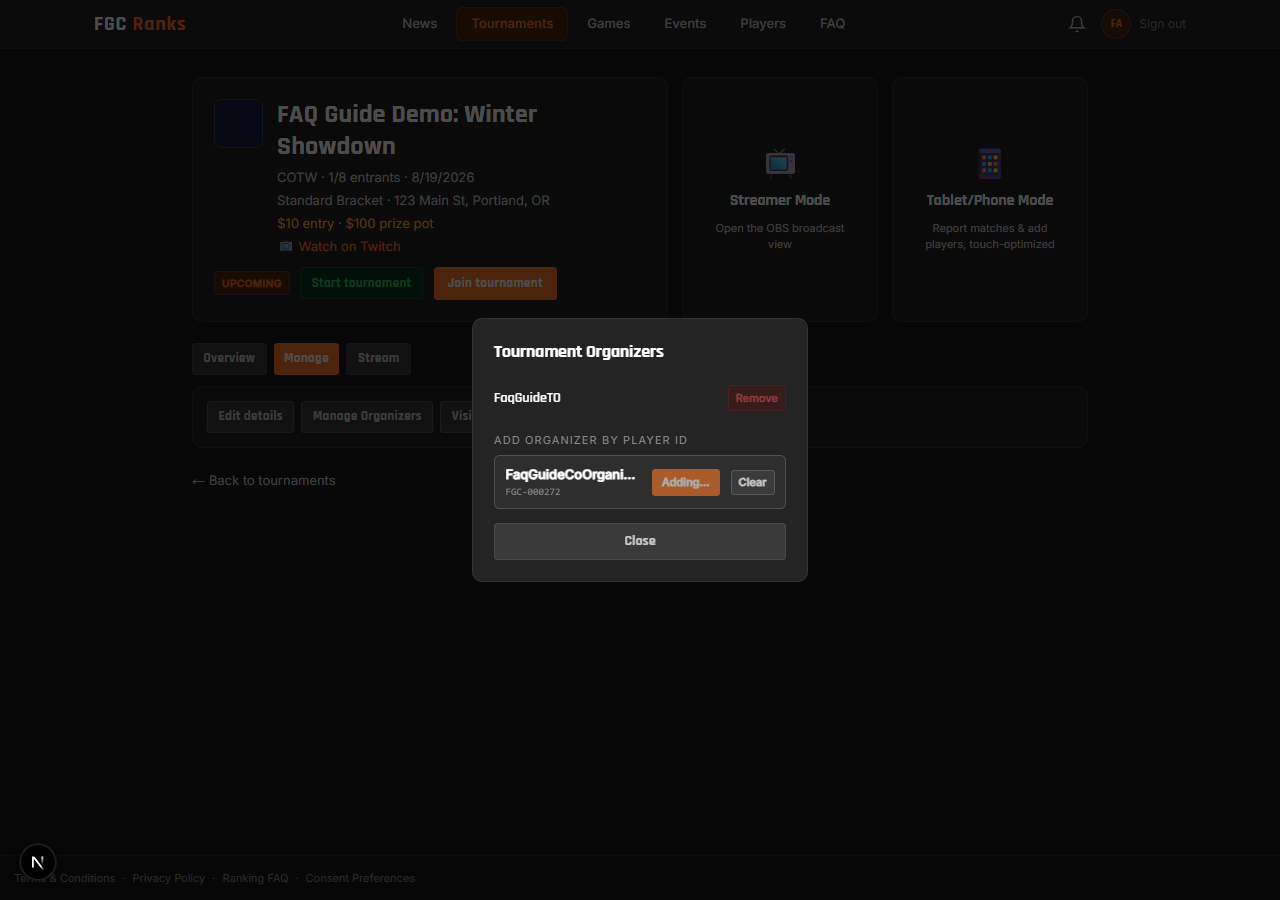
Manage Organizers adds a co-organizer by their Player ID (e.g. "FGC-000123", found on their profile) — look it up, then Add. This works for any real player, whether or not they're even entered in the tournament. Any organizer can remove another, except the last one — a tournament always needs at least one.
Edit tournament details lets you revise everything from the creation form except the name, game, and start date — logo, location, Twitch link, the Format label, capacity, entry fee, prize pot, and the linked Event.
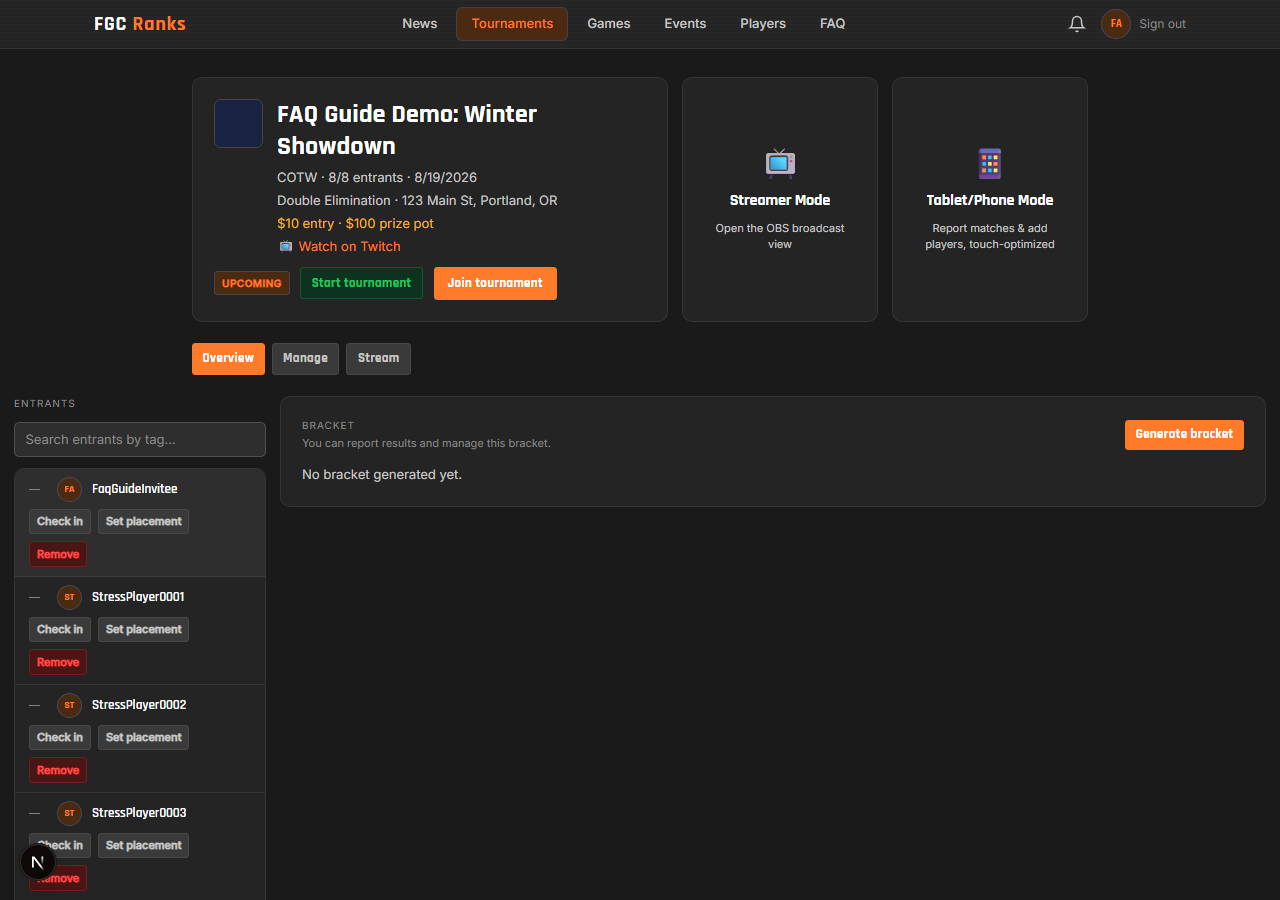
Check-in — each entrant gets a "Check in" button (either they or the TO can use it) that turns into a one-way ✓ Checked in badge — there's no undo on a check-in.
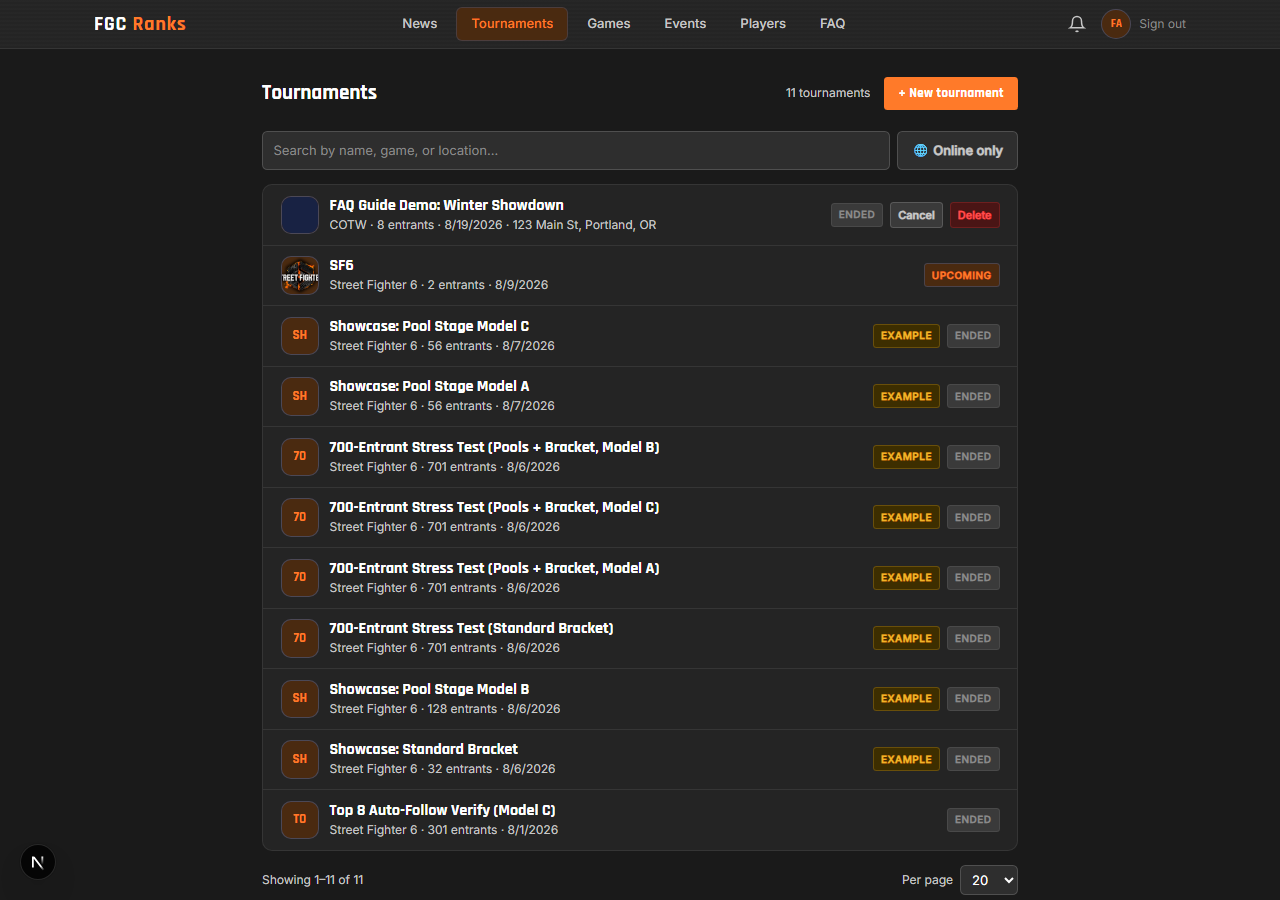
Cancel Tournament asks for a reason first — a blank reason is rejected — then confirms:
“Cancel this tournament? Entrants will be notified with the reason: "<your reason>"”
That reason is shown to entrants and on the Tournaments list.
Delete Tournament is permanent:
“Delete this tournament? This will also delete all its matches and entrants. This cannot be undone.”
Both Cancel and Delete live on the Tournaments list page, next to each of your own tournaments — not on the tournament's own detail page.
4. Generating the Bracket
Once you have at least 2 entrants, a Generate bracket button appears (Pools + Bracket tournaments generate pools first, then a main bracket once every pool finishes — same seeding choices apply to that main bracket). You pick how entrants get seeded:
- Fully random — no ranking data used at all, a coin-flip bracket.
- Random within tiers (by points) — entrants are sorted by current ranking points into groups of 4, then shuffled only within each group of 4. Keeps the strongest players roughly spread out without a fully rigid seed.
- Manual seeding — reorder every entrant into a ranked list yourself (1 = top seed); that order still feeds the normal bracket pairing math, just TO-chosen instead of automatic.
- Manual (drag into bracket) — skip the seeding math entirely and drag entrants straight onto physical bracket slots yourself.
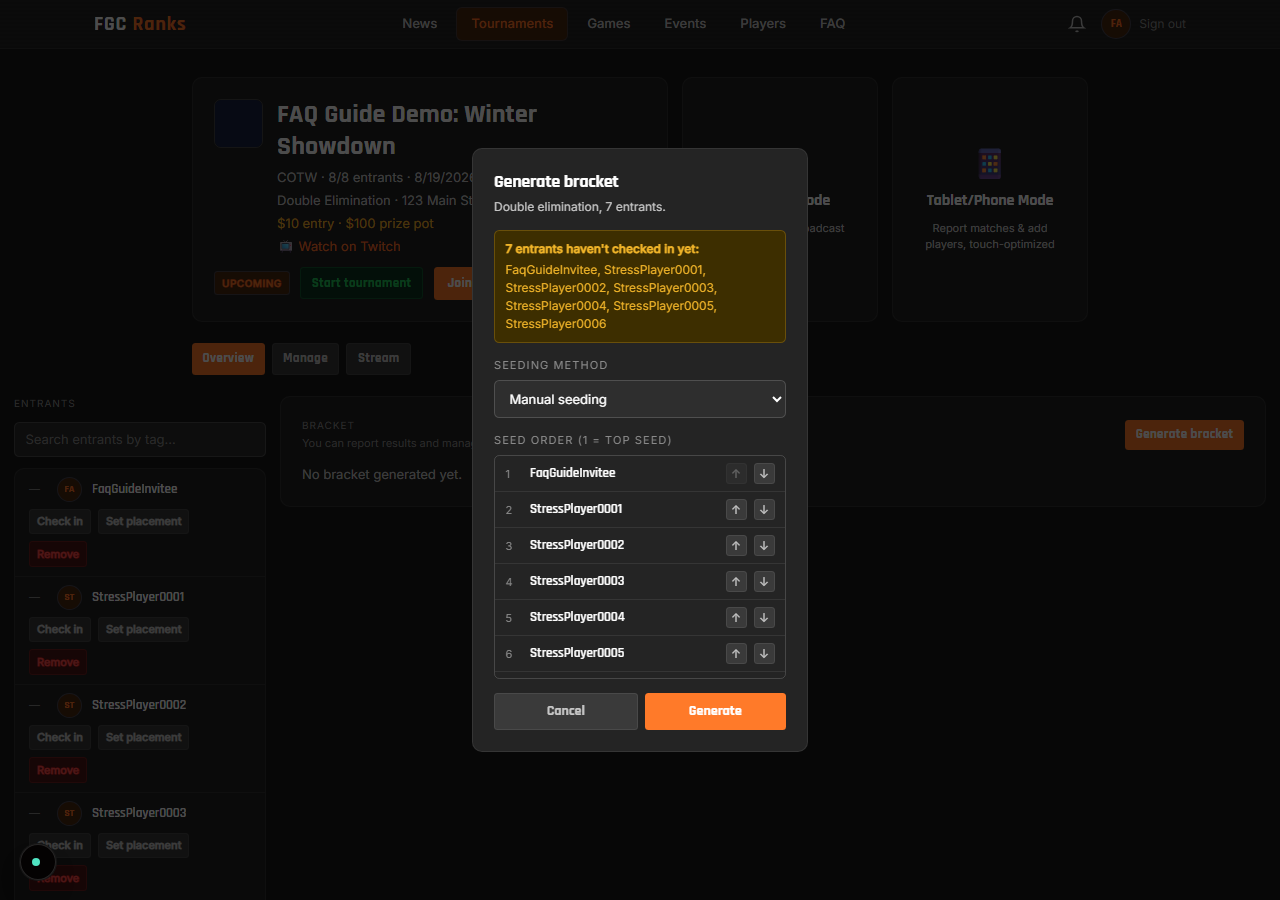
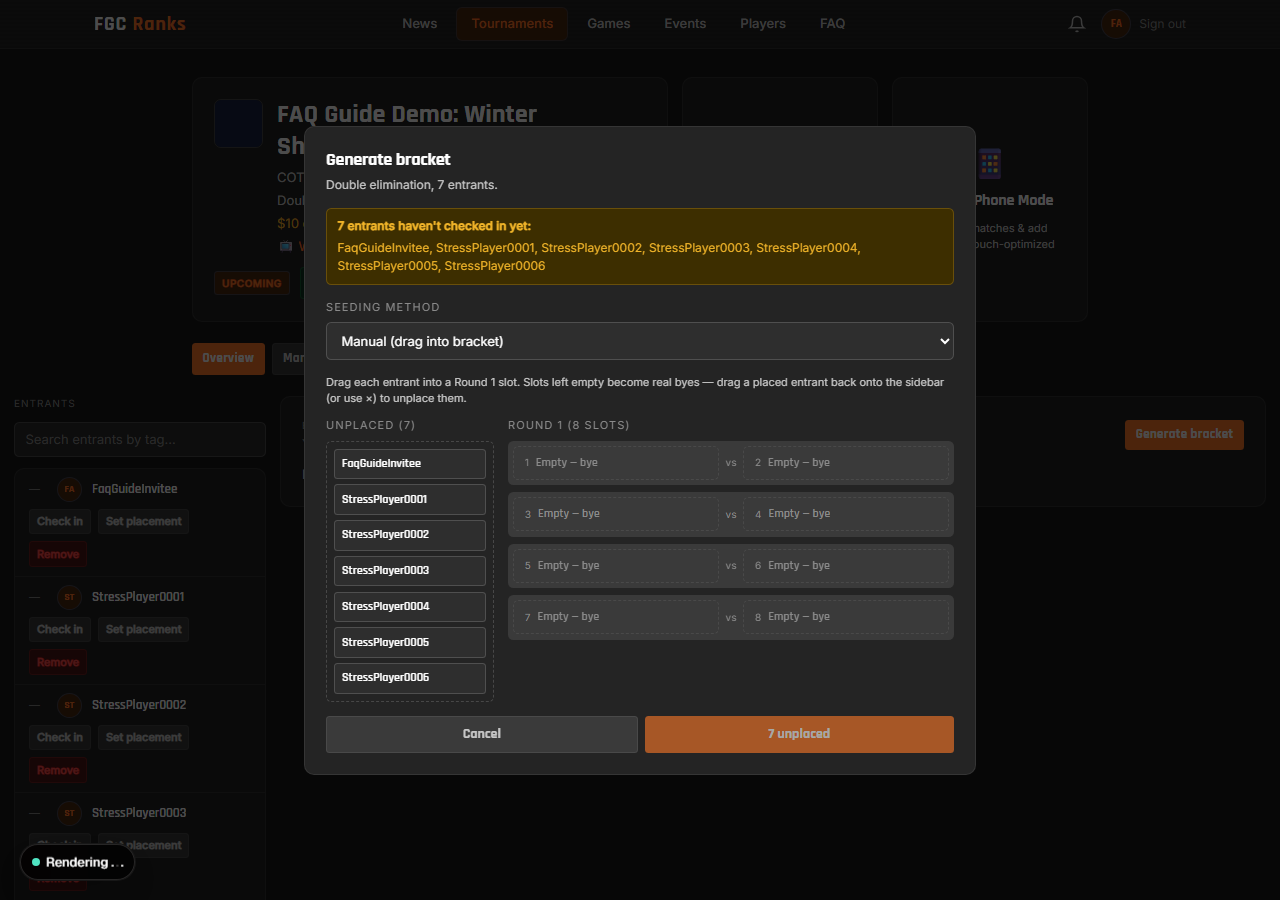
Not everyone checked in yet? A heads-up banner lists who hasn't — it's advisory only and never blocks Generate. Need to redo the bracket later? The same button becomes Delete bracket, which works even mid-tournament:
“Delete this bracket? All bracket matches and progress will be lost — you can regenerate afterward.”
5. Running the Tournament
Every match with both players known gets a Report result button, with two modes:
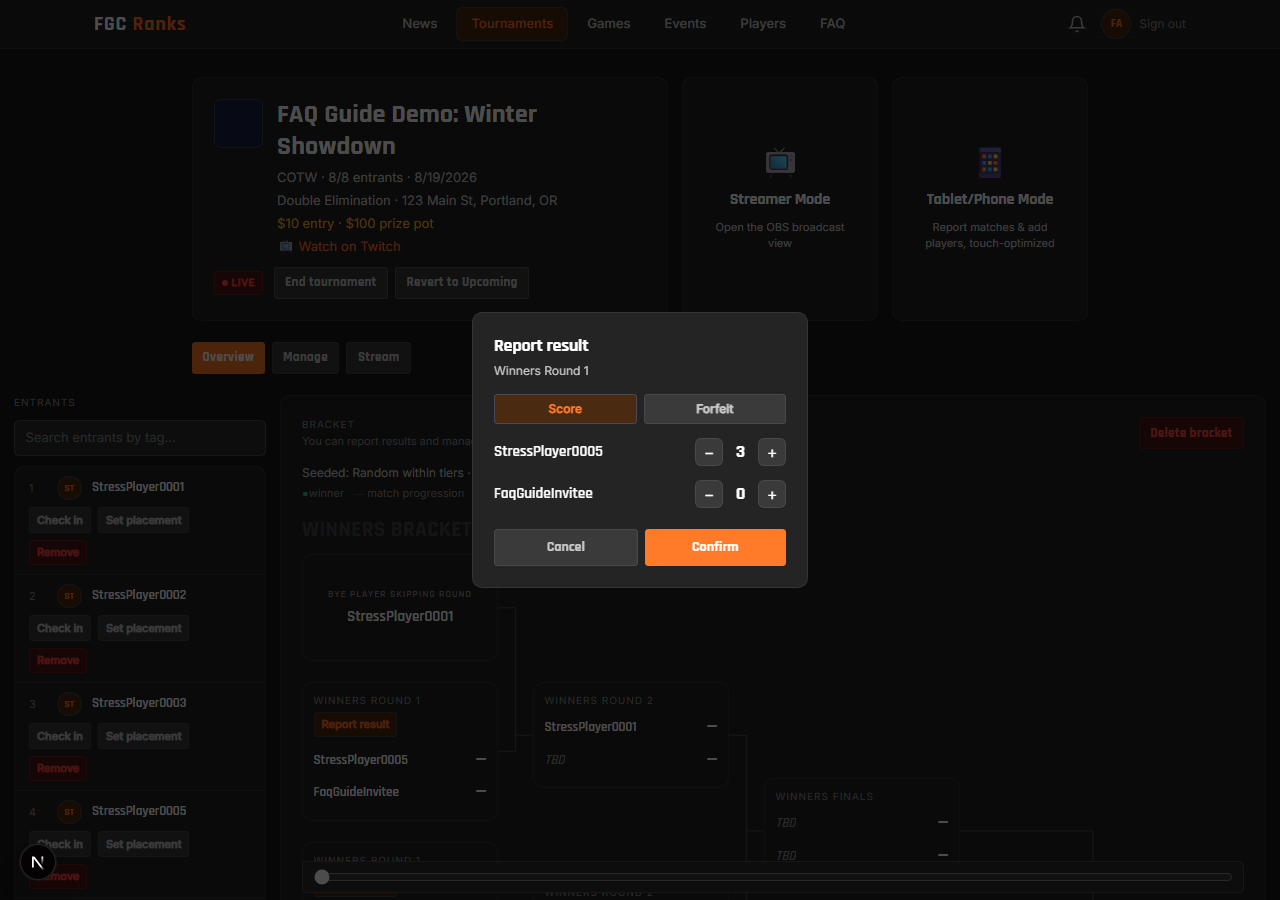
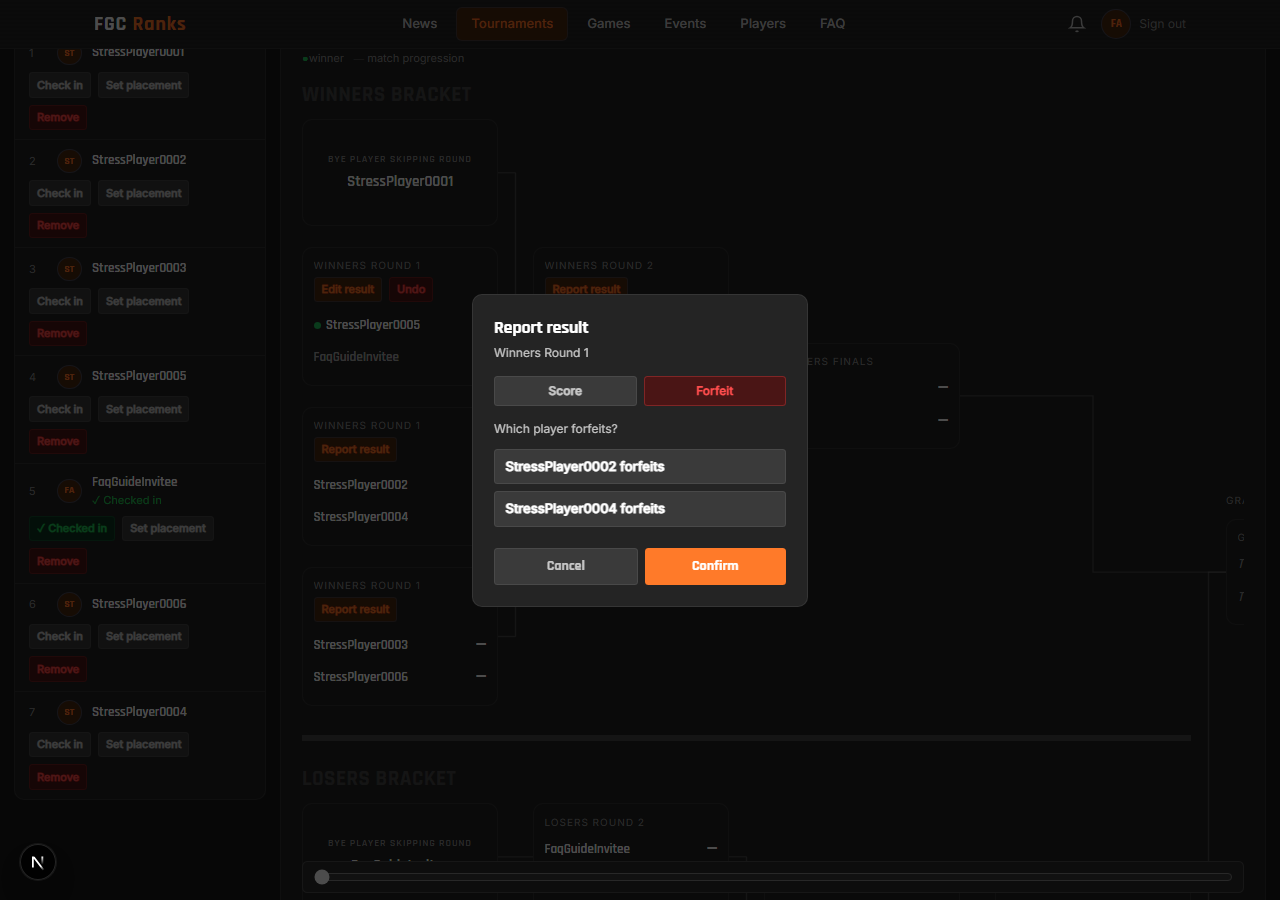
Once reported, the same button becomes Edit result — the same form, pre-filled, for fixing a mistake (this is a correction, not a new reportable event, so it doesn't send a new notification). A separate coral Undo button appears alongside it when available, which instead reverts the match to unplayed entirely — reversing its win/loss and any placement it set:
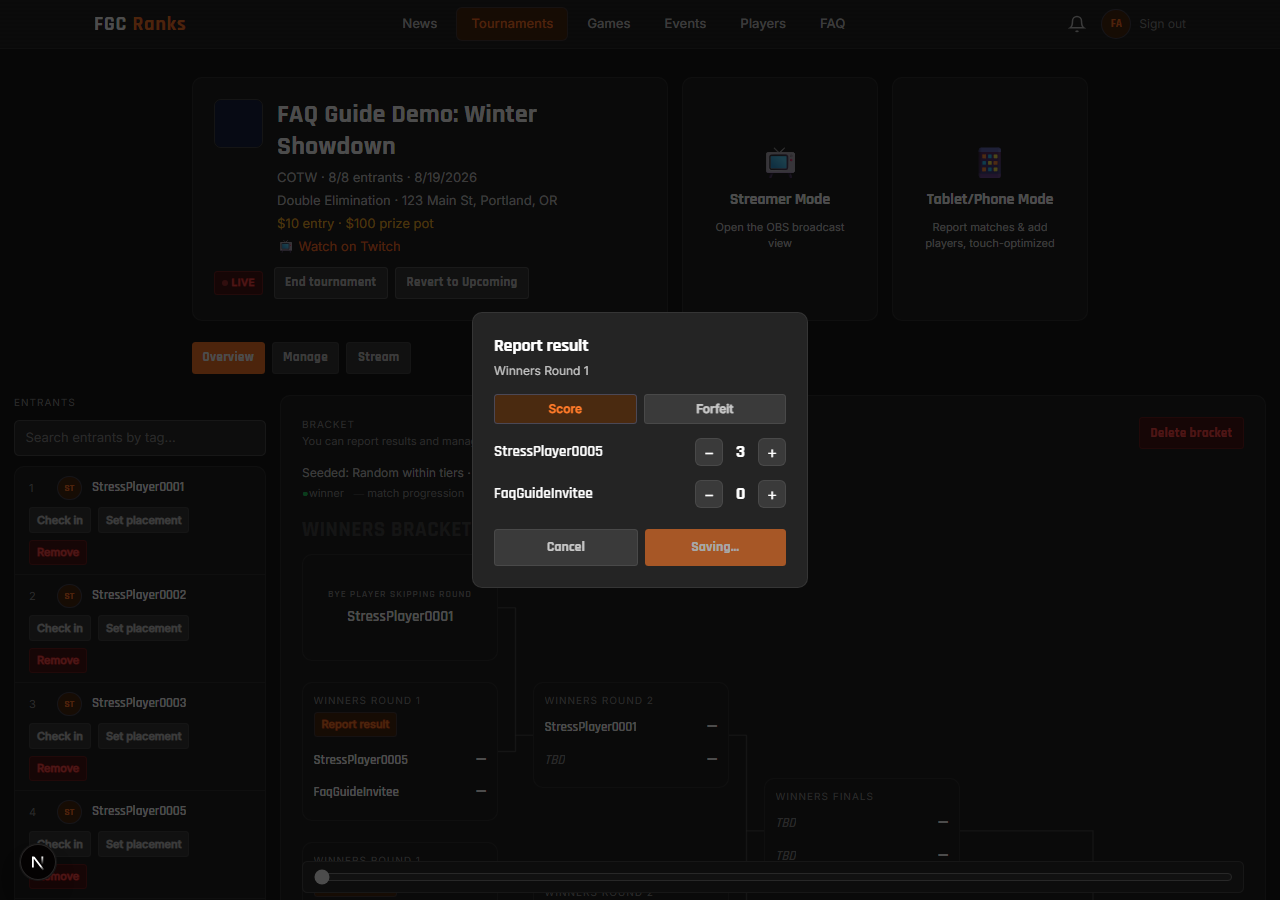
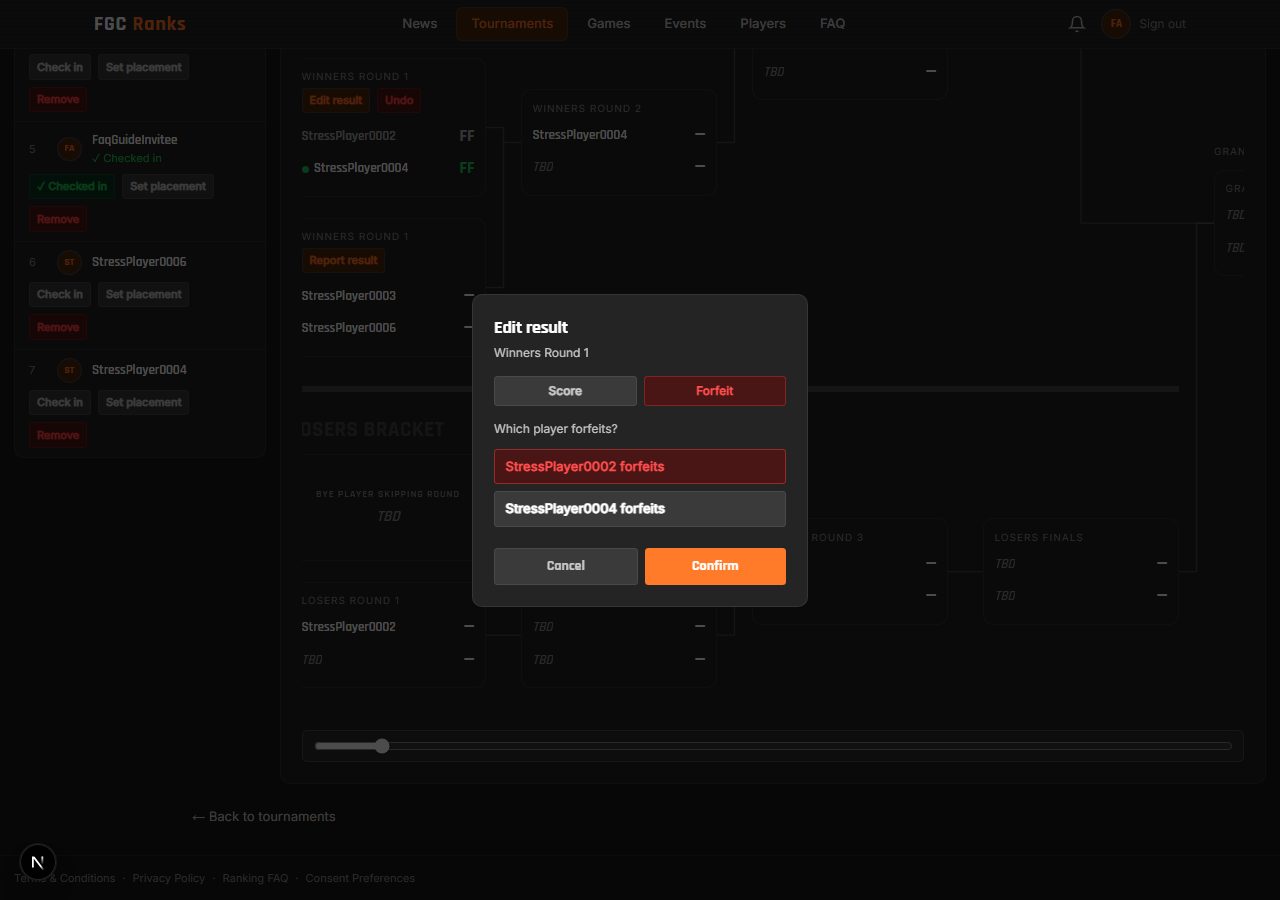
The rule for both Edit and Undo: you can only touch a match if nothing that happened after it has itself been played yet — the winner's next match, the loser's next match, or a Grand Final reset game. In plain terms, at any given moment only the single most-recent result at the "front" of the bracket can be undone. If you need to fix something further back, you'll need to undo everything that happened after it first, one match at a time, working backward.
6. Tablet/Phone Mode
A touch-optimized, full-screen mode for running matches from a tablet or phone at a table — no laptop needed. It's organizer/admin only, opened from a big card on the tournament page, and covers three things: reporting matches, adding walk-up entrants, and checking players in, all via scanning a player's Player ID QR code (shown on their own profile page).
The Report Match tab has a Queue mode toggle:
- Queue mode OFF (default, two-scan mode) — scan Player 1's QR code, then Player 2's; the app automatically finds the pending match between exactly those two players.
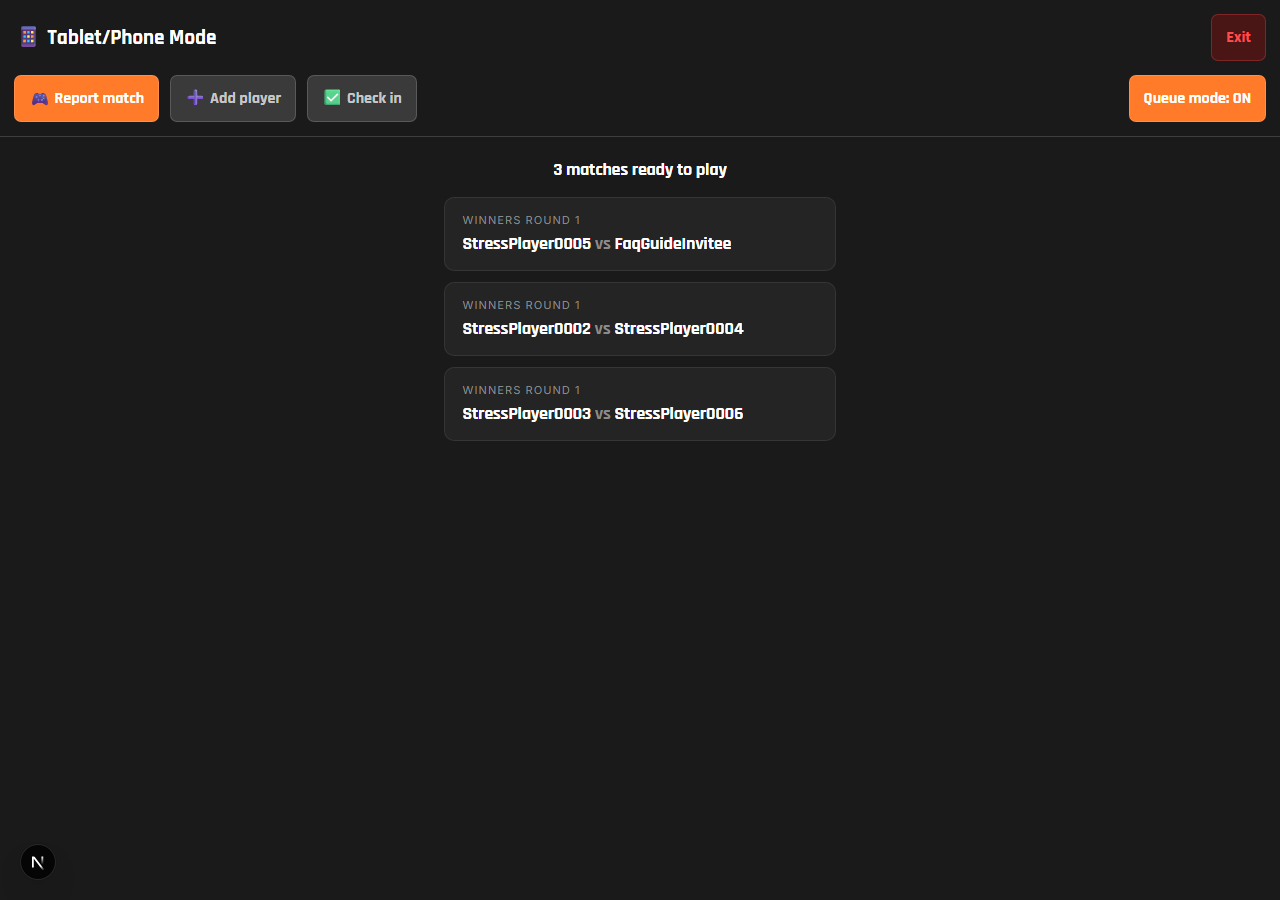
- Queue mode ON — skip scanning for match selection entirely; instead it shows a plain list of every match that's ready to play right now — tap one to jump straight to score entry.
Either way, score entry is the same: tap a player to pick the winner, adjust with +/− if needed, then Confirm. Forfeits aren't available in Tablet Mode — use the regular Report Match button on the desktop bracket view for those.
The Add Player and Check In tabs both keep the camera continuously scanning — point it at a player's QR code and it either adds them as an entrant or confirms their check-in on the spot, no per-scan taps needed, which is handy for a line of walk-up entrants.
7. Streamer Mode
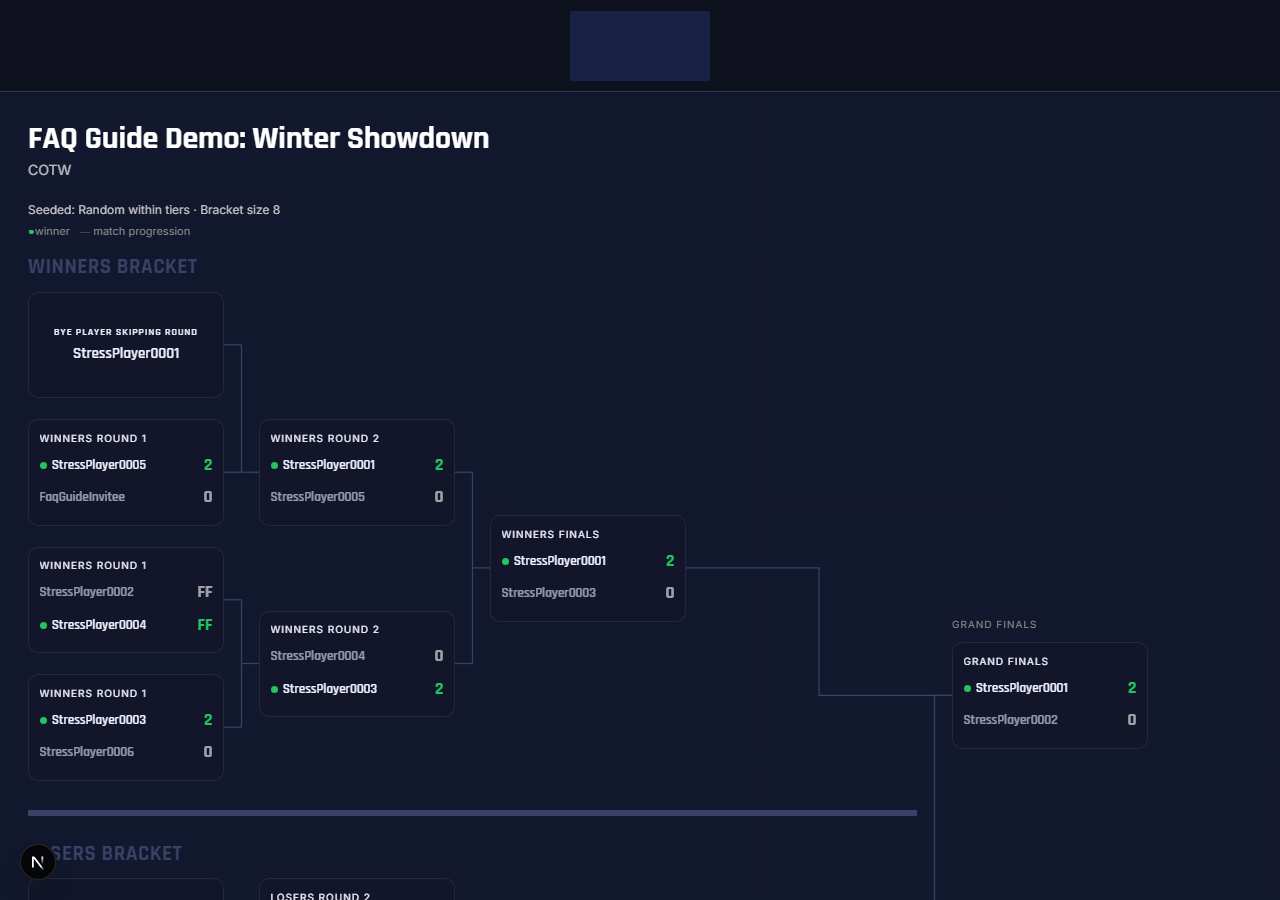
Streamer Mode is a public, read-only broadcast page at /tournaments/[id]/stream — no navbar, no site chrome, meant to be captured rather than browsed. Paste that exact URL into OBS as a Browser Source. It quietly re-checks for fresh results every 12 seconds on its own, so results appear on stream without you ever touching OBS mid-event.
Customize it from Stream settings (Manage → Stream tab): a background image, a sponsor banner (a single image, or a rotating slideshow where each slide can carry its own click-through link, plus a required rotation interval once you have 2 or more slides), and colors — the bracket's connector lines, match-card background/text, and (for round-robin/Model A pools specifically) the win/loss cell colors on the pool standings grid.
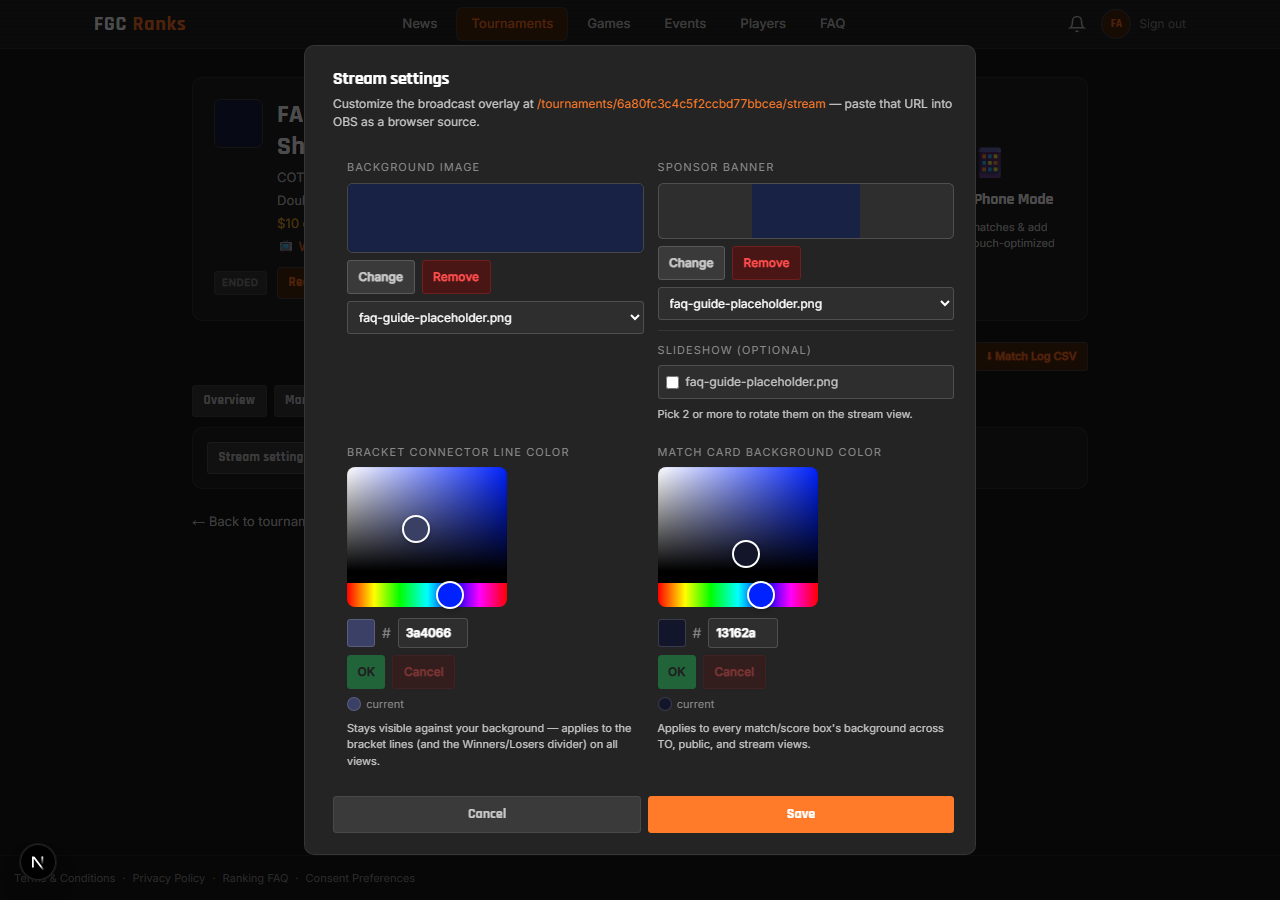
If your tournament was created without TO status, the background/banner options are hidden — bracket color customization still works regardless.
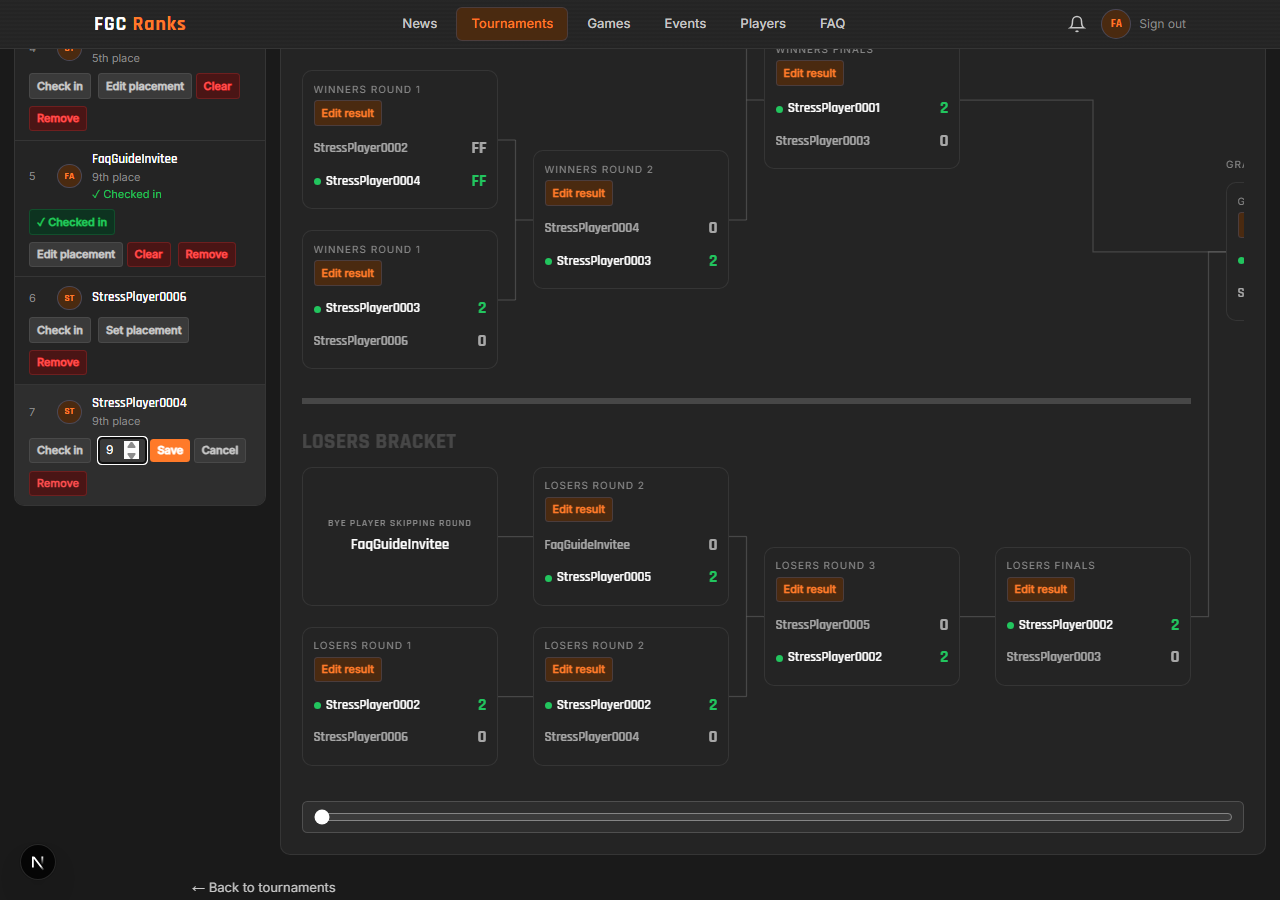
8. Set / Edit Placement
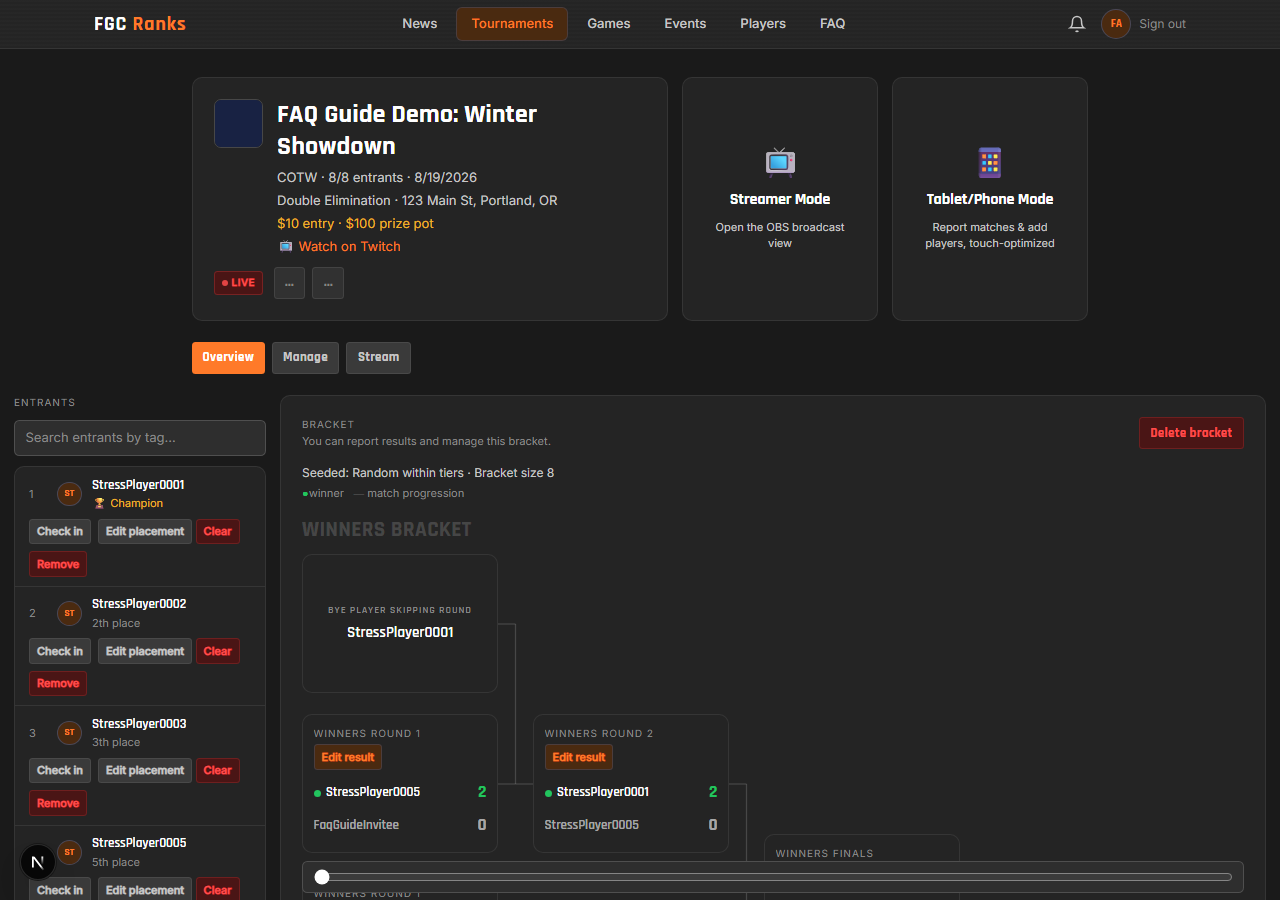
Once the bracket is actually decided — the Grand Final (or a Grand Final reset game) has been reported — final placements compute automatically: the winner gets 1st, the Grand Final loser gets 2nd, the Losers Bracket Final loser gets 3rd, and so on further back through the Losers bracket. Anyone eliminated before that point simply gets no placement set.
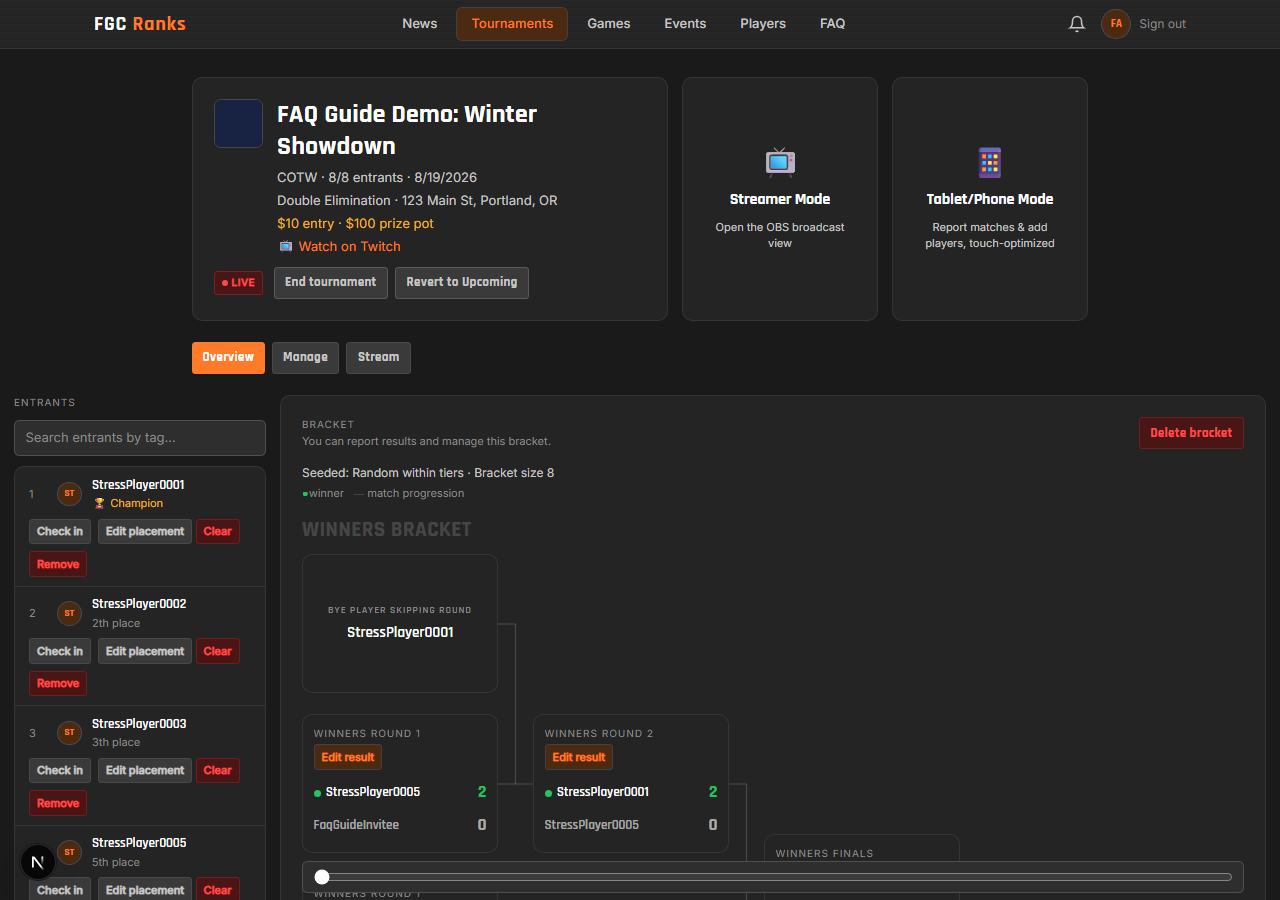
A TO can still set or override any entrant's placement by hand at any point — before, during, or after the tournament, with no status restriction:
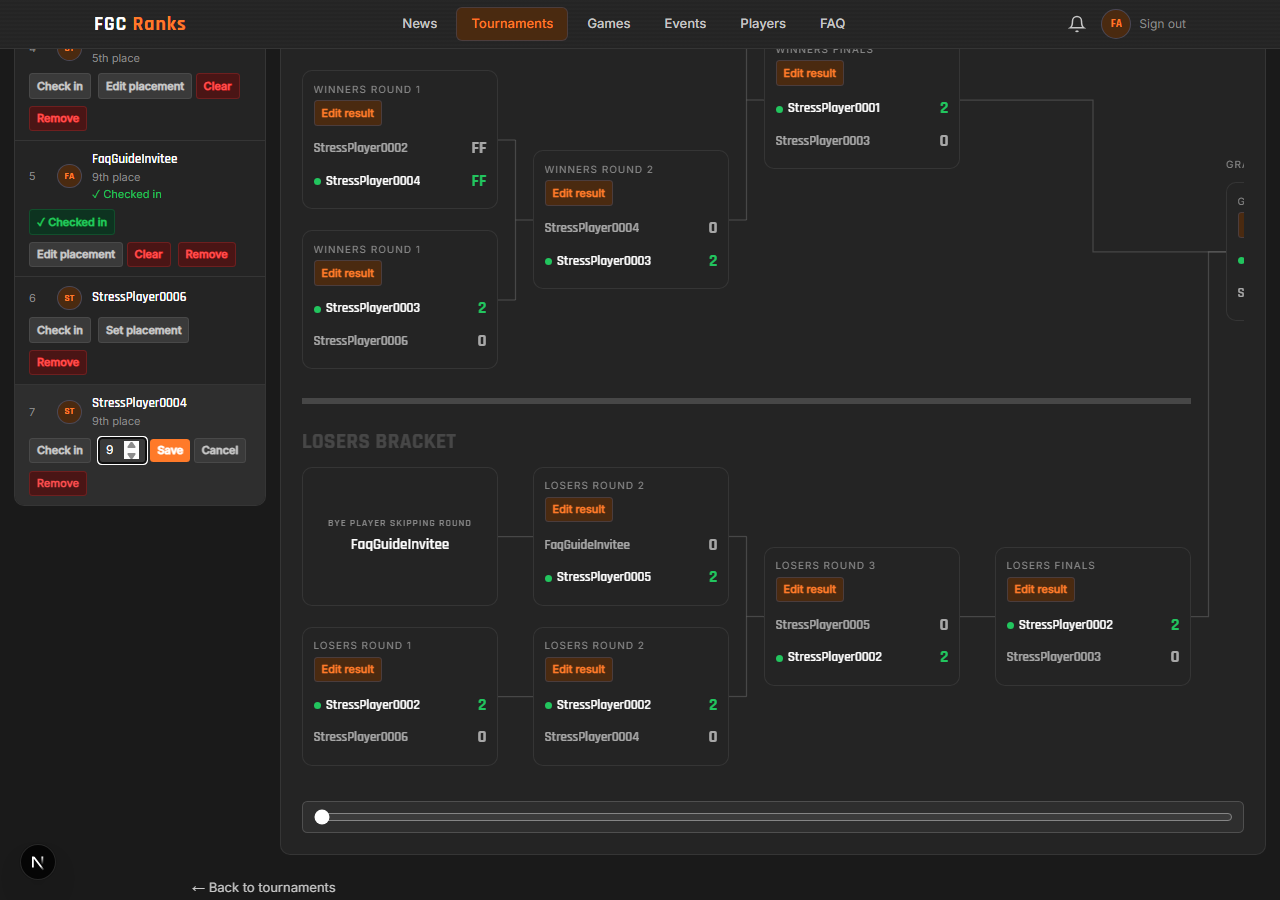
A manual placement sticks — it's never silently overwritten if the bracket later recomputes (say, after correcting the Grand Final's score). Clearing it removes the override completely and makes that entrant eligible for automatic placement again. Either way, saving or clearing a placement refreshes ranking points for everyone in that tournament, since placement feeds directly into the points system.
9. Ending a Tournament
Status moves in one direction by default, with a way back at each step:
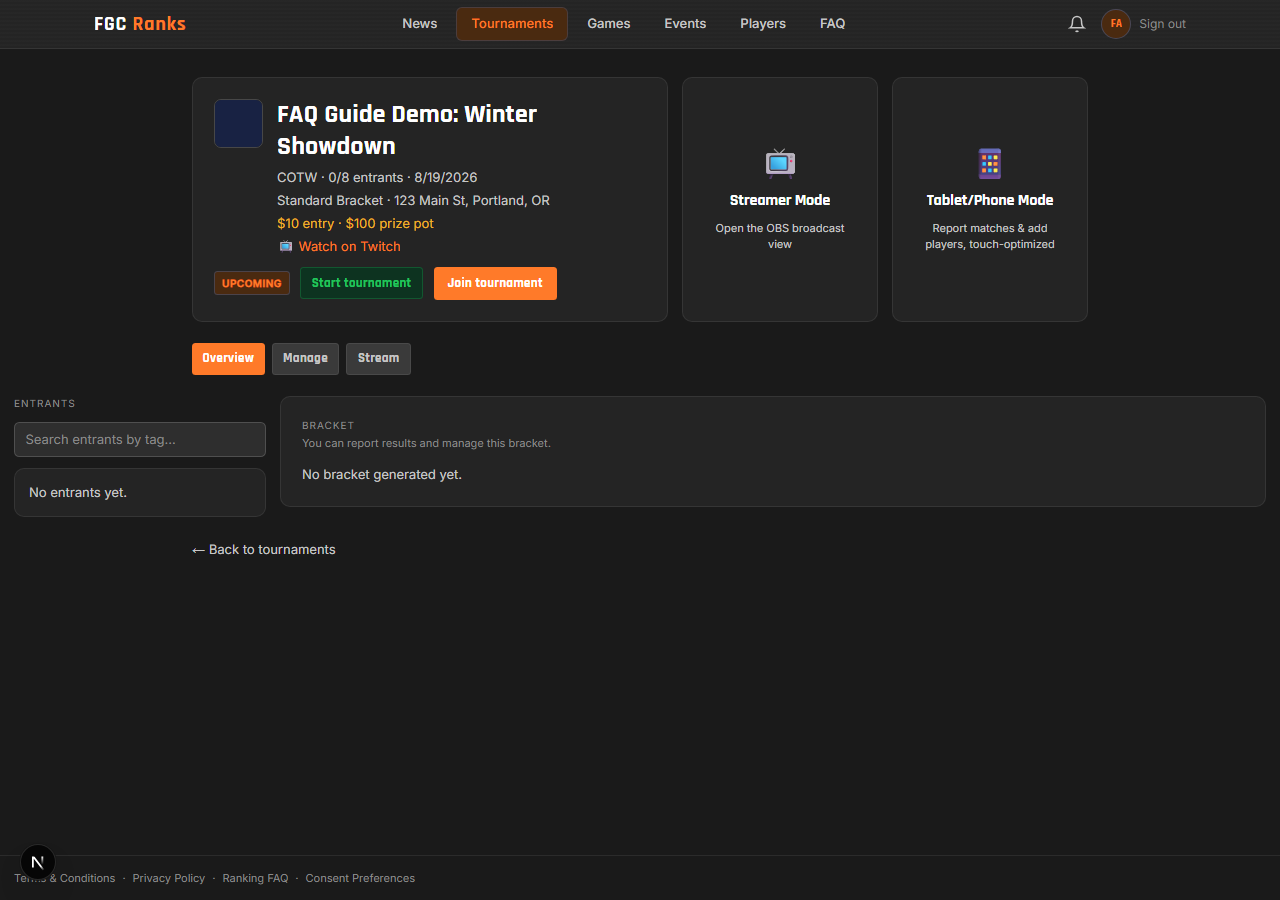
Start tournament moves it to Live. While Live, a second button — Revert to Upcoming — sits right next to End tournament:
“Revert this tournament back to Upcoming? This undoes starting it — Join/Leave will unlock again for all players, as if the tournament hadn't started yet. Any matches already reported will stay as-is.”
End tournament moves it to Ended — this locks Join/Leave for players, but doesn't touch anything else; you can still Report, Edit, or Undo matches afterward, they just can't change who's entered. A Reopen tournament button takes it straight back to Live if you need to create or report more matches later.